How to Share DerivedData Across Git Worktrees in Xcode

This post was written with the help of AI to speed things up. It's mostly here as a personal reminder.
If you've tried using Git worktrees for iOS development, you've probably hit this frustrating wall: every time you open Xcode from a new worktree, DerivedData is rebuilt from scratch. Minutes of compilation, just because you switched branches.
Here's how I solved it — with a relative DerivedData path, .gitignore, and Worktrunk to automate the whole thing.
The Problem
Git worktrees are fantastic. They let you check out multiple branches side-by-side, each in its own folder, without stashing or committing half-finished work. For iOS developers juggling feature branches, bug fixes, and reviews, they're a game-changer.
But Xcode doesn't play nicely with them out of the box.
By default, Xcode stores all build artifacts in a shared ~/Library/Developer/Xcode/DerivedData/ folder. Each worktree is a different path on disk, so Xcode treats it as a different project — and rebuilds everything. Every. Single. Time.
Step 1: Make DerivedData Relative to Your Project
The key insight is to tell Xcode to put DerivedData inside the project folder rather than in a global location.
Open Xcode and go to Settings → Locations → Derived Data. Change it from the default to Relative. Set the path to DerivedData.
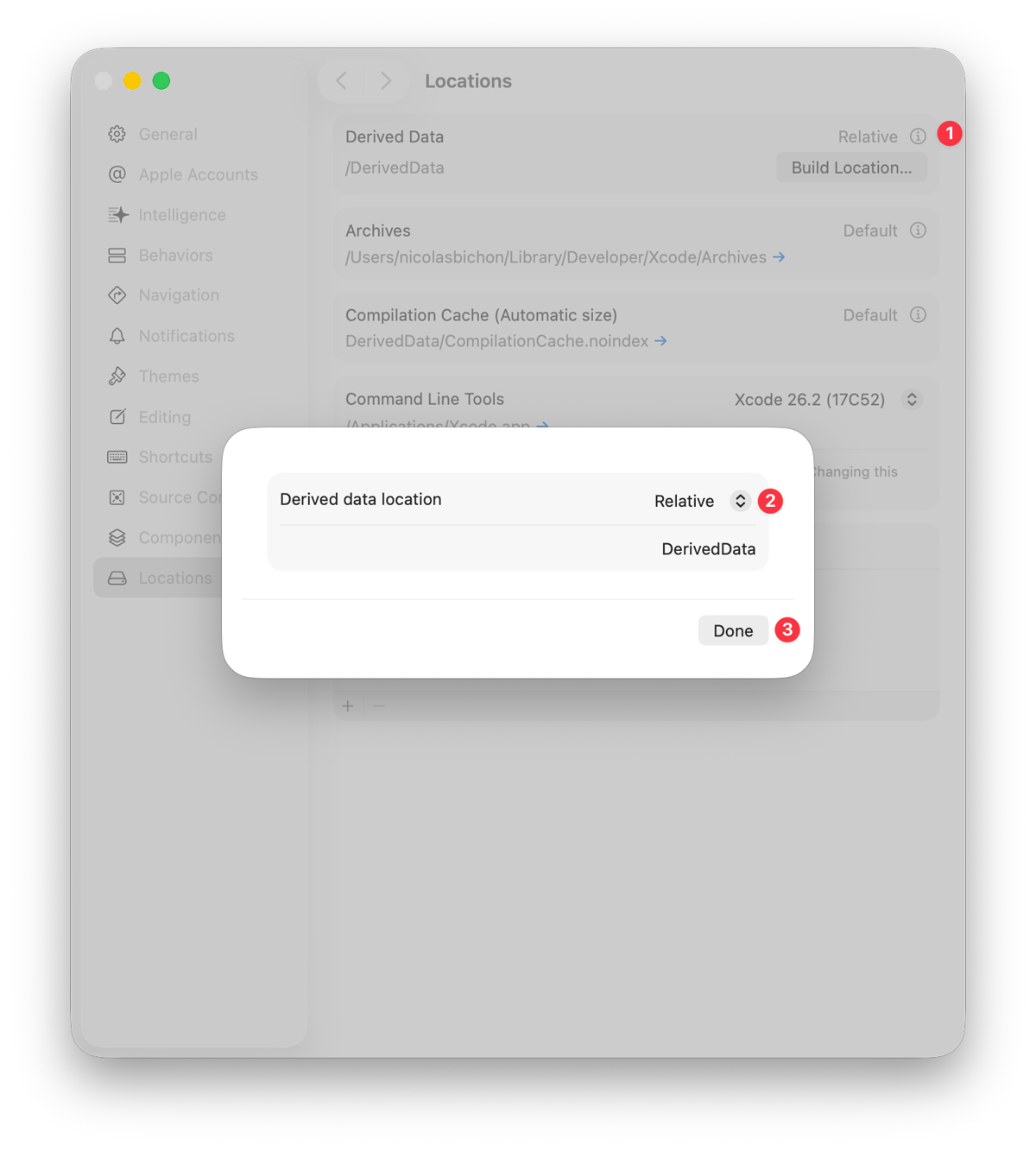
This tells Xcode to create a DerivedData/ folder at the root of whatever project directory it's working in. Now when you open the same project from a different worktree, Xcode will look for DerivedData/ right there — inside that worktree.
Step 2: Add DerivedData to .gitignore
You don't want build artifacts committed to your repo. Add this line to your .gitignore:
DerivedData/
This ensures the folder stays local to each working copy and never ends up in version control.
Step 3: Merge Your Changes Into the Default Branch
This is an easy-to-miss but important step. When you create a new worktree, Worktrunk bases it off your default branch (typically main or master). If your .gitignore changes and Worktrunk config only exist on a feature branch, new worktrees won't have them.
Make sure to merge your DerivedData .gitignore entry into your default branch before going further. If you use Git Flow and branch off develop instead, you'll also want to tell Worktrunk about it (see below).
Step 4: Install Worktrunk
You don't have to use Worktrunk — you can manage worktrees with vanilla Git. But I find it much easier, and it's a great tool overall. It has everything built in: hooks, copy-ignored files, and more.
Worktrunk is a CLI that makes Git worktrees as easy as branches. Install it with Homebrew:
brew install worktrunk && wt config shell install
Worktrunk lets you create and switch between worktrees with simple commands like wt switch --create my-feature instead of juggling long git worktree add commands and cd-ing into paths manually.
Step 5: Automate DerivedData Copying with a Hook
Here's where the magic happens. Worktrunk has a command called wt step copy-ignored that copies gitignored files from your main worktree into new ones. And because DerivedData is now gitignored and lives inside the project folder, it gets picked up automatically.
Create a .config/wt.toml file at the root of your repository:
[post-start]
copy = "wt step copy-ignored"
Setting the Default Branch (Git Flow Users)
By default, wt switch --create bases new branches off your default branch (main/master). Worktrunk detects it automatically by checking, in order: its own cache, the primary remote HEAD (origin/HEAD), a remote query via git ls-remote, and finally local heuristics.
If you follow Git Flow and always branch from develop, override the detected default:
wt config state default-branch set develop
You can verify the current value at any time:
wt config state default-branch get
Or reset it to trigger re-detection:
wt config state default-branch clear
This way every wt switch --create my-feature automatically branches from develop — no need to pass --base develop each time.
Important: Whichever branch Worktrunk uses as the default is where your config needs to live. Merge your
.config/wt.tomland.gitignorechanges into that branch (be itmainordevelop) so every new worktree inherits them.
That's it. Now every time you create a new worktree with wt switch --create, Worktrunk runs copy-ignored in the background and copies over the DerivedData folder (along with any other gitignored files like Pods/, .env, etc.).
Optional: Use .worktreeinclude for Precision
If you only want to copy specific gitignored files (and not everything), create a .worktreeinclude file at your project root:
DerivedData/
Pods/
When this file exists, only files that are both gitignored and listed here will be copied.
Why This Doesn't Eat Your Disk
You might wonder: copying gigabytes of DerivedData for every worktree? That sounds wasteful.
It's not — thanks to APFS copy-on-write (also called reflinks). On macOS, wt step copy-ignored uses copy-on-write under the hood (like cp -c). This means the copied files share the same physical disk blocks as the originals. No actual data duplication happens. The files only start taking extra space when one copy is modified.
In practice, most of DerivedData is shared between branches (frameworks, dependencies, intermediate build products). Only the bits that actually differ end up taking additional space.
The Full Workflow
Here's what it looks like day-to-day:
# You're on main, DerivedData is warm from your last build
wt switch --create fix-login-bug

# Worktrunk creates the worktree and copies DerivedData in the background
# Open Xcode — build artifacts are already there
open MyApp.xcodeproj

# Xcode does an incremental build instead of a full rebuild
# Done in seconds, not minutes
When you're finished with the branch:
wt remove
Worktrunk cleans up the worktree and its DerivedData copy.
Recap
- Set DerivedData to Relative in Xcode Settings → Locations, so it lives inside your project folder.
- Add
DerivedData/to.gitignoreso it's never committed. - Merge into your default branch (
mainordevelopfor Git Flow) so every worktree inherits the config. - Install Worktrunk (
brew install worktrunk) for easy worktree management. - Add a
post-starthook in.config/wt.tomlto copy gitignored files to new worktrees automatically. - Set
default-branchwithwt config state default-branch setif you use Git Flow or branch from something other thanmain. - APFS copy-on-write ensures the copies are nearly instant and don't waste disk space.
No more waiting for full rebuilds when switching branches. Just fast, parallel iOS development.